
QR Scanner
P & L StudioTools
3.72.97K Reviews
- Version
- 1.7.0
- Installs
- 10.00M
- Age Rating
- Everyone
Screenshots
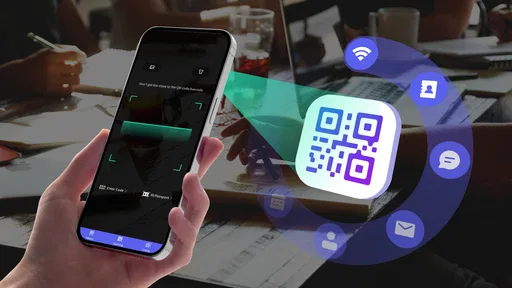
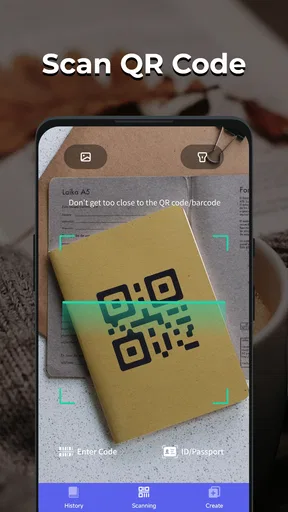
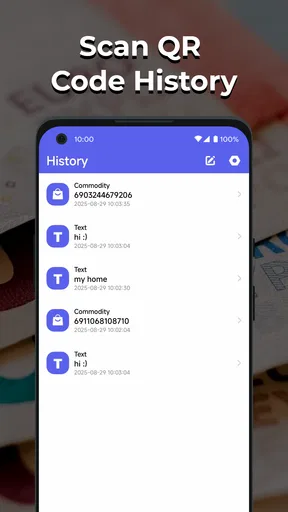
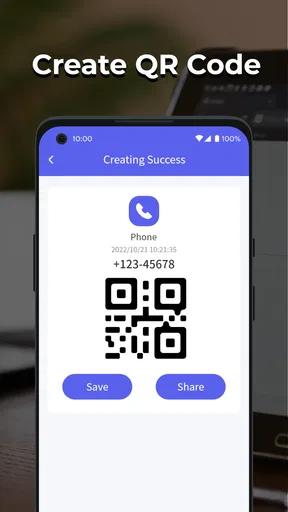
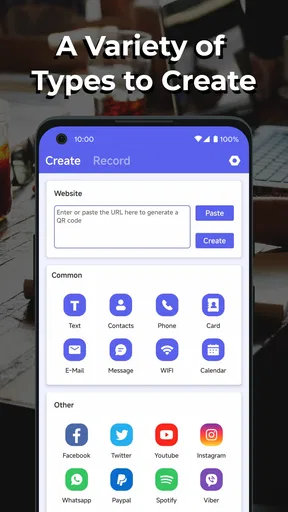
Our Review of QR Scanner
 Analysis by Appyee
QR Scanner from P & L Studio is the kind of small utility I reach for when I need an answer from a square pattern quickly and do not want to turn the task into a larger project. It is a free tools app for Android, rated for Everyone, and its basic purpose is easy to understand: point the phone at a QR code and let the app decode it. After using it in ordinary situations, I found its appeal less about extra features and more about reducing the number of steps between seeing a code and knowing what it contains.
The app has a 3.7 average from around 67 thousand ratings, with roughly 3 thousand written reviews, and it has passed 10 million installs. Those figures suggest that it has become a familiar option for people who want a dedicated scanner rather than relying on a camera application. Still, popularity does not make every scanning tool equally comfortable for every person or setting, so I paid particular attention to how readable and manageable the experience feels when conditions are less than ideal.
How the scanning experience feels in everyday use
I focus on what makes a dedicated scanner feel manageable when the code is right in front of me: a clear, single-purpose task rather than a hunt through camera controls. That simplicity is most useful when I need to act quickly but still want a moment to understand what the code contains. Next, I look at how small changes in positioning can make the scan itself less frustrating.
A simple layout that is easy to understand
The strongest part of QR Scanner is that its main task is immediately apparent. I do not have to learn a complicated workflow before trying a scan. That matters when someone is standing at a counter, holding a menu in one hand, or trying to read a code printed on packaging. The focused design also makes it less intimidating for a person who is not comfortable exploring unfamiliar apps.
For many users, readability starts with knowing where to look. A scanner works best when the camera view and the action required from the user are visually clear. QR Scanner’s purpose keeps the screen from feeling overloaded, which is helpful for people who find crowded interfaces tiring or distracting. I would still advise using the phone’s normal display settings to enlarge text or improve contrast when needed, because an app’s simple layout cannot replace system-level adjustments for low vision.
Navigation is also easier when the user approaches the app with one specific goal. If I open it to scan a code, I am not forced to sort through unrelated categories or set up an account before getting started. That makes it practical for occasional users, older relatives, and anyone who prefers tools that explain themselves through their immediate function rather than through a long onboarding process.
What happens after a code is recognized
A useful scanner should not make the result feel mysterious. Once a code is read, the important question is what the decoded content means and what action I should take next. In a normal use case, that might be opening a website, checking text, or following information printed beside the code. I recommend pausing briefly to inspect the result instead of treating every scan as automatically trustworthy.
This is one of the practical differences between a dedicated scanner and a general camera app. A camera may already recognize QR patterns, but the experience can vary depending on the phone model, camera software, and whether the user knows where the recognition prompt appears. QR Scanner gives the task its own place, which can be easier to remember. The trade-off is that it adds another app to the phone when many modern cameras already include similar recognition.
For a person who scans only once every few months, the built-in camera may be the more convenient choice. For someone who regularly encounters codes and wants a clearly defined tool, this app is easier to explain: open the scanner, frame the pattern, review the result. That clarity is its main advantage over the usual alternative, not a long list of advanced controls.
Reading comfort in different environments
QR codes are often encountered in awkward places: on a glossy receipt, behind a counter, on a dimly lit sign, or on a screen reflecting overhead lights. The app cannot remove those physical problems, but the way I use it can make a substantial difference. I hold the phone steady, avoid covering the camera area, and move the device slightly rather than pushing it extremely close to the code.
When the code is on another phone, lowering the brightness of that second screen can sometimes reduce glare. When it is printed, turning the paper toward a light source without creating a reflection is more useful than simply moving the scanner around quickly. These are small adjustments, but they are especially valuable for users with shaky hands, reduced depth perception, or difficulty judging focus.
The most accessible scanning habit is to improve the code’s position before blaming the app. Placing the code flat, keeping the phone at a comfortable distance, and allowing a moment for recognition makes the interaction calmer. Rapidly waving the phone is frustrating for almost everyone and is particularly difficult for people with motor limitations.
Motor control and one-handed use
A QR scanner naturally involves a physical action: the user must aim a camera and keep it sufficiently stable. That creates a barrier for people with tremors, limited grip strength, or difficulty coordinating both hands. QR Scanner’s focused purpose helps because there are fewer decisions to make, but it does not change the basic demands of camera-based scanning.
I found that one-handed use is most realistic when the code is already at a comfortable height and the phone is not being used for anything else. In a busy shop, however, I may need one hand for a bag or a wallet. In that situation, asking another person to hold the item steady or placing the phone against a stable surface can be more effective than repeatedly attempting the scan while walking.
Users with limited reach should also think about the physical location of the code. A scanner can decode a pattern, but it cannot make a high poster, a distant display, or a code behind glass easier to access. That is a limitation of the situation rather than a missing menu option, and it is worth considering before choosing any camera-based scanner.
Visual and sensory considerations
People with low vision may need more than a clear camera view. They may depend on enlarged interface elements, screen magnification, spoken feedback, or a trusted person to confirm the decoded result. I would test QR Scanner with the phone’s existing accessibility settings before relying on it for important tasks. The app’s straightforward purpose is promising for reducing cognitive load, but I would not assume that every visual or spoken interaction works equally well on every Android device.
For users who are sensitive to visual clutter, the limited focus of a scanning tool can be reassuring. There is less reason to explore multiple panels or remember a complicated sequence. For users who are sensitive to motion or sudden changes, it helps to keep the phone still and work in a well-lit location rather than scanning while moving through a crowded space.
Hearing-related needs are less central to the basic job because scanning is primarily visual, but that does not make the surrounding context irrelevant. If a venue gives verbal instructions about what to do after scanning, a person who cannot hear them may need the printed instructions or assistance from staff. The app can decode a code; it cannot guarantee that the entire process around the code is accessible.
A realistic scenario: scanning at a café
Imagine arriving at a café where the menu is printed as a QR code on the table. I open QR Scanner, position the phone over the pattern, and wait rather than trying to capture it at an angle. If the table is reflective, I shift the phone or turn the menu slightly. After the result appears, I check that it matches the café’s context before continuing.
This scenario shows both the app’s value and its limits. The dedicated tool can make the first step straightforward, especially for someone who does not know whether their camera supports QR recognition. But the user may still need to enlarge the menu afterward, use screen reading tools, or ask staff for a printed version. A successful scan is only the beginning of an accessible experience.
Using it in travel, work, and shared spaces
QR codes appear in transport information, event check-ins, product instructions, payment-related flows, and workplace notices. In each case, the best workflow is slightly different. For a public sign, I prefer to stand somewhere that does not block other people. For a code on a document, I place the paper on a flat surface. For a code shown on a monitor, I adjust the display angle before adjusting the phone.
Shared spaces create additional challenges for people who need more time. Someone with limited dexterity may feel pressured when a line is waiting behind them. I would scan before reaching the counter when possible, or ask staff whether there is another way to access the same information. That is not a failure of QR Scanner; it is a reminder that speed-focused environments often overlook people who need a slower, more deliberate interaction.
In a workplace, the app can be useful for quick internal links or equipment labels, but I would avoid treating it as a complete document-management solution. A scanner is convenient for one code at a time. If the task involves recording many results, organizing them, or sharing a history with a team, a more specialized tool may be a better fit.
Privacy-minded scanning habits
Every QR code should be treated as an instruction from an unknown source until I understand where it leads. A code can be printed by a trusted business, but it can also be placed over an original sign or shared in a message without much context. I check the displayed destination before opening it, particularly when the scan relates to payments, account access, or personal information.
This caution is important for people who rely on visual assistance. If another person reads the result aloud, I would still confirm the destination through a second channel when the action is sensitive. Accessibility and security overlap here: making information easier to perceive should not mean removing the user’s opportunity to question it.
QR Scanner is best viewed as a decoder, not as a guarantee that the decoded content is safe or accurate. That distinction is easy to forget because the physical act of scanning feels neutral. My practical rule is simple: scan freely, but open links and submit information carefully.
Where the app may create friction
The first barrier is the need to aim a camera. People with unsteady hands, limited mobility, or difficulty aligning objects may find a dedicated scanner no easier than the camera already installed on the phone. The app’s focused design reduces mental effort, but it cannot provide physical stabilization or make a distant code larger.
The second barrier is dependence on the surrounding code. A damaged, tiny, reflective, or poorly printed pattern can be difficult to read regardless of the scanner used. In those cases, improving the lighting, asking for a closer copy, or requesting a non-QR alternative is more sensible than repeatedly retrying.
The third is the possibility of unnecessary duplication. Android devices running version 6.0 or later can use this app, and the current release is version 1.7.0, but many phones already offer QR recognition through their camera. Installing a separate tool is worthwhile when the built-in option is confusing or unavailable. Otherwise, keeping fewer apps may be preferable for a person who wants to minimize clutter and maintenance.
There is also a difference between a tool being easy to start and being fully comfortable for every user. I would not choose QR Scanner solely on the assumption that a simple interface automatically means complete accessibility. Anyone who depends on screen readers, switch access, large controls, or other specific support should try the app on their own device and keep an alternative workflow available.
Who should use it, and who should choose something else
I think QR Scanner is a sensible choice for Android users who want a free, dedicated way to decode codes without learning a broad productivity suite. It suits occasional scanning at shops, cafés, offices, museums, and events. It is also a reasonable recommendation for a family member who finds the phone’s camera features confusing and benefits from an app with one obvious purpose.
I would look elsewhere if I needed batch scanning, detailed history management, document organization, or a broader accessibility workflow with clearly documented support for a particular assistive technology. I would also skip it if the phone’s built-in camera already scans reliably and I am trying to keep the device as uncluttered as possible.
The developer, P & L Studio, has kept the concept focused rather than turning it into a crowded toolbox. That restraint is useful for beginners, but advanced users may interpret the same restraint as a lack of depth. The right choice depends on whether I value a separate, recognizable scanner more than having every function inside the camera or another established utility.
My inclusive verdict
QR Scanner earns its place as a straightforward Android utility because it makes the first step of decoding a code easy to understand. Its free price and Everyone content rating make it approachable, while its broad availability on older Android devices means it can serve people who are not using a recent phone. The app is not a complete answer to accessibility, but its narrow focus can reduce confusion in everyday situations.
My recommendation comes with practical conditions. Use a stable surface when possible, improve the lighting before repeatedly retrying, review destinations before opening them, and keep a non-QR option in mind for important information. People with motor or visual needs should test it alongside their phone’s accessibility settings rather than assuming the camera interaction will suit them automatically.
Overall, I would recommend it to someone who wants a dedicated scanner and does not need advanced organization tools. I would not present it as universally effortless, because the physical act of aiming a camera and the design of the surrounding QR experience still matter. Within its modest role, though, QR Scanner is clear, approachable, and useful when the usual camera shortcut is not enough.
Verdict
Strengths of QR Scanner
- Scans QR codes quickly, even when the code is slightly angled or worn.
- Supports scanning from saved images, not just through the camera.
- Simple interface makes it easy for first-time users to navigate.
- Provides instant access to links without requiring an account.
- Useful for checking product, event, payment, and Wi-Fi QR codes.
Limitations of QR Scanner
- Some features may depend on camera permissions and device compatibility.
- Scanned links should be checked carefully before opening unfamiliar websites.
- May struggle with very small, blurry, or poorly lit QR codes.
- The app can feel limited if you need advanced barcode management tools.
- Ads may interrupt scanning or reduce the clean look of the interface.
Other Releases by P & L Studio
View All
Location Share
Maps & Navigation3.8
Similar Picks in This Category
View All
Google LLC4.0

Gboard - the Google Keyboard
Google LLC4.5

Google Play services
Google LLC4.3

Google Play Store
Google LLC4.9

Files by Google
Google LLC4.5

SHAREit: Transfer, Share Files
Smart Media4U Technology Pte.Ltd.4.3
Frequently Asked Questions
What is QR Scanner and what can it do?
QR Scanner is a mobile app designed to read QR codes quickly using your phone’s camera. After scanning, it can usually recognize links, text, contact details, Wi-Fi information, email addresses, phone numbers, and other encoded data. The app is useful for accessing websites, checking product information, joining networks, or saving scanned content for later use.
Is QR Scanner free to download and use?
QR Scanner can generally be downloaded at no cost, although the exact features may depend on the Android or iOS version you install. Some editions may include advertising, optional premium tools, or in-app purchases. Before downloading, check the app store listing carefully to confirm whether advanced functions, ad removal, scan history, or additional utilities require payment.
Does QR Scanner require an internet connection?
The basic scanning process normally works without an internet connection because the camera reads the code directly on your device. However, an internet connection may be necessary when the QR code contains a website, online document, map location, or other web-based content. Some features, such as cloud backup or online history synchronization, may also require connectivity.
Is it safe to open QR codes scanned with the app?
The scanner can read a QR code, but it cannot guarantee that the information behind it is safe. A code may lead to a legitimate website, a misleading page, a download, or a phishing attempt. Review the displayed address before opening it, avoid entering sensitive information on unfamiliar pages, and do not install files simply because a QR code recommends them.
What permissions does QR Scanner need on my phone?
The most important permission is access to the camera, which is required to scan codes in real time. Depending on the version and available tools, the app may also request access to photos so you can scan an image saved on your device. You can review or change permissions in your phone’s settings and deny anything that seems unnecessary.
